Saturday, July 18, 2020
My experience in Updating to Thunderbird 78
Sunday, July 5, 2020
A belated note: TLS 1.0 and 1.1 support ended with Thunderbird 68.4
The time has come in Thunderbird for the end of life of TLS version 1.0 and 1.1. TLS 1.0 was technically "end of life" 30 June 2018 but for reasons, I do not grasp the agreement between Apple, Google, Microsoft, and Mozilla to retire support for these aging cryptographic protocols is for version 1.0 and 1.1 together. Firefox has now retired them in Version 74, and as Thunderbird is built on the Mozilla platform it is also retiring them at the same time as Firefox ESR removes it in Version 68.5.
So what does this mean to Thunderbird mail users? For most people it means nothing. Your mail provider will have been proactive in retiring old protocols and maintaining their PCI DSS compliance so the change will have no impact at all.
For those who use mail servers that do not have proactive administrators, you will not be able to connect to the mail server to get your mail. If you suspect this might be the case, open the error console (Alt+Shift+J) and clear it (trash bin icon) then attempt to get your mail.
You will see errors about incompatible connection or security issues. I do not have access to a noncompliant email server to offer examples. But as an alternative, you can go to the ssl-tools web site and put in the part of your email address after the @ and check in the report that your mail server supports TLS versions greater than 1.1
Saturday, February 22, 2020
Changing text color and the special issue this represents for Mac users.
You are using Apple, the complex things you see are part of your apple operating system. Windows users see a colour picker that they pick a colour from because that is the tool windows offers up when asked.
Both operating systems should put up an equivalent to this
Apple has something that looks like this as their operating system colour picker
They offer instructions here on using this part of their operating system.
The special problem MAC users appear to have is they do not close the colour picker dialog and then complain that the colours in Thunderbird do not update. So, close the dialog. That is all you have to do to make it work.
Friday, September 20, 2019
I lost my Profile/Mail on update of Thunderbird
If this is you, then you are not alone. Thunderbird 68 comes with this fancy new profile per install thing that the Firefox folk invented with Firefox 67. It serves a purpose, but for the vast majority of users it is nothing but a nuisance that offers yet another reason for things to go wrong. But it can be beaten and once set should remain the same basically forever. The current issues are mostly about changing from 32 to 64 bit builds and once that is done should not have to be repeated.
In my instruction I assume that the profile is located in the default location. if you changed this default to some other drive for space reasons for example, you will need to correct my instructions so your looking in the right place for your old profile.
First navigate to the Troubleshooting information on the help menu. Scroll to the bottom of the "Application Basics" information and select the last entry. About:profiles.
This will open a new tab showing the about profiles information.
This heading is followed by all the registered profiles Thunderbird currently has registered.
If you have more than the current default profile listed, it is worth noting the name of the current default and clicking the "Launch profile in a new browser" button for other profiles shown. The label is incorrect and awaits correction. But clicking the button will launch Thunderbird in a new window with the selected profile loaded. If it happens to be what you are looking for. Click the Set as default button and you good to restart.
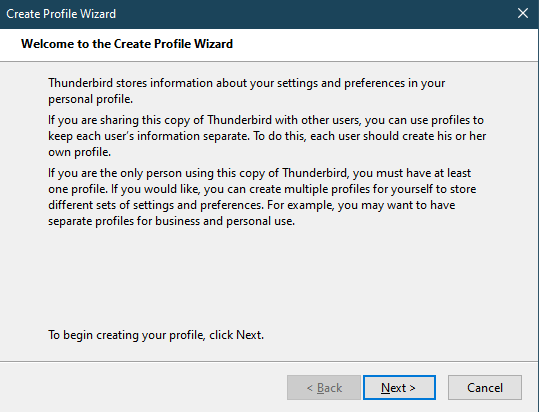
If none of the profiles listed here are your missing one, you will need to move on to creating a new profile that is in the same location as the old profile. Use the "Create a new profile" button at the top of the about:profiles page to start Thunderbirds Create profile wizard.
Now click the choose folder button. This will open a standard open dialog in the default location of the profiles. What I see looks like this
This list of files with their random characters and "profile names" on the end is the same list as shown in the about:profiles page. But there should be one more profile listed here than is shown in the about:profiles page. Select it as the location for your new profile and click ok. Then in the profile wizard click finish.
You will be returned to the about profiles page and the list will be refreshed with your new profile name which will show as default. A restart of Thunderbird should see the correct profile launched.
Profile per install and downgrade protection
Thunderbird 68 also introduced a Mozilla feature, profile per install and picked up the downgrade protection along with it. This actively prevents downgrading from one version to another. Mozilla also introduced a new command line option to override the downgrade protection.
For those using Thunderbird this command line also works. So I suppose I need to offer instructions for that.
For Windows users,
using the run command (Windows key+R)
Entering the following command line for 32 bit Thunderbird
"C:\Program Files (x86)\Mozilla Thunderbird\Thunderbird" -allow-downgrade
or the following command line for 64 bit Thunderbird
"C:\Program Files\Mozilla Thunderbird\Thunderbird" -allow-downgraded
These example assume default installs and you might just have been switched from 32 to a 64 bit build on update. So you might have to try both.
For MacOS
cd /Applications/Firefox.app/Contents/MacOS
./firefox -allow-downgrade
For Linuxcd Thunderbird installation directory ./thunderbird -allow-downgrade
Friday, July 19, 2019
Yahoo problems
If that does not do it for you you will need to use the config editor to modify the setting mail.strictly_mime to true to force Thunderbird to use 7bit encoding in email. This is not an optimal setting but is sometimes needed to workaround the various Yahoo issues.
Wednesday, February 28, 2018
Copy Thunderbirds profile to a new computer.
I am writing this because really the article is inadequate, but attempts to improve it run into issues with Linux and OSX. So here the discussion is about windows only and will offer instruction that assume you have not changed some fundamental options in Thunderbird.
While the vast majority of Thunderbird users do not change the location of their profile, or change the folder ("Local Directory") used to store the mail data for an account. It is possible to do both things and is one of the reasons the instructions on the support site are not as good as they should be.
So check the following in your old device.
Local Directory
- Right click the account in the folder pane in Thunderbird.
- Select properties
- In the server Settings for the account look at the "Local Directory"

In the above image I have removed the parts of the path that are specific to any one computer. The remaining information is consistent with all versions of Windows since XP. The part that needs to be checked to ensure it is set to a default location is \appdata\Roaming\Thunderbird. If your path does not contain this string. These instructions are not for you.
- On the help menu select troubleshooting information.
- Click open folder beside "Profile Folder"
- Windows file manager will open.
Again check the profile location contains \appdata\Roaming\Thunderbird. This is the default location of the profile and unless it has been actively changed will show in the path at the top of the explorer window.
If the above two checks show \appdata\Roaming\Thunderbird then proceed with the profile size check and actual copy below.
Size check and copy
Old device.
- Windows key + R
- Type %appdata%
- In the Windows explorer window that opens select the Thunderbird folder with your mouse in the left hand pane.
- Right click the Thunderbird folder with your mouse and select properties from the menu that appears. Take note of the size of the Thunderbird folder and the number of files.
- Select a USB device with sufficient free space to hold your profile folder and copy the folder to it.
- Right click the Thunderbird folder on the USB drive and confirm it is the same number of file and folders as you noted earlier. If it is different then the copy will most likely not be complete.
- Windows key + R
- Type %appdata%
- Copy the Thunderbird folder from your USB device and drop it onto the appdata folder in the windows file manager. If there was no Thunderbird folder before, one should be created. If there was one you should be prompted to replace files.
- Install Thunderbird. Or start it if you previously installed it..
-
This document predates the official Thunderbird support documentation at https://support.mozilla.org/en-US/kb/compacting-folders What is ...
-
With the introduction of the rewritten mail send there has been a huge uptick in the number of folk having issues sending mail from Thunde...
-
There has been something of a rash of people loosing either the toolbar or the menu bar in Thunderbird. This is probably only going to get ...