Tuesday, September 6, 2016

Bigpond mail changes.

Today I got an email from Bigpond/Telstra advising me their mail system was changing.  It was full of nice touchy feely vibes and after I read it all I knew was at some future date something was changing.  Congratulations Telstra.  This is important stuff and you have dumbed it down to the level of a marketing email.  Then I check the date the change is scheduled for and it is today.  Talk about forward planing.  The email they send today said "We'll email you in a few weeks with the exact move date of your email service listed below".

By searching around on the Telstra web site. They do have the information, and I must admit the email has a link to the starting point. I learned that the changes to  me really involve their closing up of shop of the Bigpond brand, and finally modernizing their email system to use secure connections. Minor really,  but enough to stop my Thunderbird accounts getting mail without changes.

So my ancient Bigpond server settings will need to be changed when the day comes (Today).  Telstra recommend I also convert to IMAP.  That is a whole different issue.  My existing email accounts are POP and I just want then to keep working.  So here are the changes I will have to make to my existing Bigpond mail accounts.

To summarise the changes to "just keep on as it was"  the following information will need to be changed

Incoming information in your account.

Field Existing Setting New Setting
Server Name: mail.bigpond.com pop.telstra.com
Port: 110 995
Connection Security: None SSL/TLS


Outgoing Server (SMTP)
This is at the bottom of the list of accounts in account settings.

Field Existing Setting New Setting
Server Name: mail.bigpond.com smtp.telstra.com
Port: 25 465
Connection Security: None SSL/TLS

I have included the recommended settings. However Telstra also allow for the use of Port 587 and connection security STARTTLS. As this is actually more secure, I suggest you try those first, before using the recommended less secure settings.

It is always possible to add a new account as IMAP,  but that is not the purpose of my posting.  My purpose is to offer setting that will allow your existing account to just keep working.

Source links at Telstra. 

Thursday, August 18, 2016

My experience Windows 10 and Thunderbird / Firefox freezing

This posting is somewhat off topic for me,  but then it is on topic, because the issues I am discussing initially appeared to be in Mozilla branded products.  I am a glutton for punishment sometimes, and as a result I run daily builds of both Firefox and Thunderbird.  The result of this is a mostly reasonable experience with occasional disaster days where you get a Thunderbird or Firefox that basically does not load at all.

In July I bit the bullet and updated Windows to version 10,  the motivation was more a case of I had seen many people in the support forums with Windows 10 issues and really they appeared to be largely inexplicable than any desire to use the latest and greatest from Microsoft.

In all the upgrade of my Dell Vostro went well.  I read the options closely enough to find the tiny option to keep my existing settings and after a number of hours  I was away with the new Windows 10.  I turned off all the phone home things Windows 10 wanted to do, I stopped Cortana and got rid of all the rubbish in the start menu.  Things were looking positive. 

So here I am in August,  frustrated by Mozilla Firefox.  It is horrible and getting worse.  It just stops responding for anything from a few seconds to a minute or more.  Typing in reply dialogs on support.mozilla.org just stops mid word. When it returns large chunks of what was typed is simply not there, not in some buffer waiting for the freeze to end, just not there.

Then Thunderbird started to display this same abhorrent behaviour.  It just stops responding.  Sometime it says it is not responding,  other times it just does nothing.  At least it is not as bad as Firefox.  But it appears to be getting worse

Then I noticed something new.  The command window in Windows 10 was also freezing.  This was when I realized I had an issue with Windows, or some other software freezing windows,  not Mozilla branded software at all.

I started searching on the web and it really only took a few moments to see I was not alone.  There were lots of folk apparently experiencing hangs or freezing.  In my usual approach to these things I read a few of the first hits I got from Google, looking for similarities and common solutions.  Then I clicked on a link to a YouTube video that offered to fix windows 10 freezing.  Cynic that I am I though what are they selling.  Well nothing is the answer! Except a free solution for me.

I found that of the settings mentioned in the video,  only the PCI express setting appeared in power on my desktop.  So like the guy in the video I tuned the setting in power management off.  That was a couple of days ago now.  I have experienced no  freezing at all since that change.

 The lesson for me was just how much of my computer time is spent in Firefox and Thunderbird.  I had the problem for weeks and never even considered I was looking in the wrong place for a solution.

Thursday, June 9, 2016

Hotmail Proxy errors

The longer I deal with Microsoft the less surprised I become by there aggressive and underhanded marketing.  The latest from Microsoft is that they are converting all of their existing Hotmail/ Live/MSN accounts to their new outlook.com. What these good people forgot to mention is, if you have been getting your mail via the pop protocol until now,  they are going to turn that option off for you.

How did I become aware they had done this for me.  Thunderbird no longer received mails from my Hotmail accounts.  Instead I got this lengthy and opaque  error message.

Sending of password for user {MyEmailAddress]@hotmail.com did not succeed. Mail server pop3.live.com responded: Authentication failure: unknown user name or bad password. [Error="ProxyNotAuthenticated" AuthResult=0 Proxy=SIXPR0201MB0940.apcprd02.prod.outlook.com:1995:SSL]


So now I am aware of this blatant decision to ignore the users settings in favour of some that favour vendor lock-in. I think it is high time for some user instructions on how to set things back to rights.

First log into your account at Hotmail/Live/MSN/Outlook using your browser.   Once you get there you will probably be facing a user interface that is entirely new to you.

To start locate the cog on the right of the toolbar pane. It displays the following menu, and is included in the image


Select options from the menu entry and you will be taken to the following page, where you will need to click on the POP and IMAP settings entry on the left.


Change the POP options to on. and click the save "button"
Click on another folder and then click back on the POP and IMAP settings entry.


You will now see that the settings for the account, including the server name are shown   Make note of that server name.  Currently simply turning the option back on will restart downloads to your mail client,  be it Thunderbird or any other POP client.  However for future proofing, I strongly suggest you change the server name you are using to the one provided by the web site. There is no telling when they will simply remove the old server names.

Right click your account in the folder pane of Thunderbird, and select settings.
In the server setting page for the account insert the server named in your settings on the web page.

In my case I was advised the server name was pop-mail.outlook.com so that is what is shown in the image above.   When I changed the server name Thunderbird warned me about filters.  This is not an issue, as all that is changed is the server name.  Everything else remains the same, really it is the same account on the same server, so just acknowledge the warning. Your user name will not change from what you are using currently, which should be your full email address.


Saturday, January 23, 2016

Outlook.com / Office365 Imap subscribed folders disappear, difficulty in subscribing

Over the past couple of days it has become apparent that there has been an issue with IMAP accounts hosted on office365 and outlook.com.  Support has received a number of complains of subscribed folders disappearing from Thunderbird and attempts to re-subscribe failing.

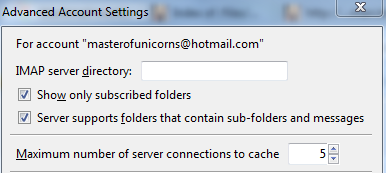
A workaround has been identified by turning off the Thunderbird option "Show only subscribed folders".

To turn off this option;
  1. Right click the account in the folder pane.
  2. Select the menu entry Settings
  3. In the server settings for the account,select the advanced button.
  4. In the advanced account settings dialog, un-check the option "Show only subscribed folders"


----o0O0o----


Microsoft have now acknowledged the issue as EX41924 and are posting updates here. At the time of writing this post the latest update (update 4) is suggesting a code solution has been developed and is currently being deployed across the office365 and outlook.com web sites to remediate the failure their previous patch caused.Affected users that wish to follow the Microsoft support thread on community.office365.com can find it here.

While it is unfortunate,  there is nothing the Thunderbird community can do in this other than offer the workaround until such time as Microsoft resume normal services.


Sunday, March 22, 2015

Filter Import/Export

For a short time until Thunderbird V5 was released there was a message filter import export add-on.

This appears to have been abandoned by it's original Author, and around the time of Thunderbird Version 19 someone fiddled the max version and again added it to Thunderbird addons at AMO. I have done the same to increase the max version to 38.  So the add-on should install for a while yet.  I have not used it as yet.but I appear to lack an import option.Looks like I will have to investigate further.

Download

Sunday, October 12, 2014

Sync Hotmail/Outlook.com contacts with the Thunderbird address book.

For as long as I have been using Thunderbird there have been those folk who wanted to synchronise contacts with Hotmail/Outlook.com.  This has been relatively simple for Google account holders, with multiple add-ons available, with relative strengths and weaknesses.  Whilst chasing information on an unrelated subject in the past week I stumbled upon the TZ Push add-on. Something of an unfortunate name as it does not allude to it's ability with activesync or Outlook.com.  This add-on connects to ActiveSync data sources. The add-ons page states Z-Push, Zentyal/Zarafa, Horde, Outlook.com and other Activesync providers.  So there are two things here.

  1. TZ Sync is an activeSync address book synchronisation tool. So any service that offers activSync or Exchange ActivSync should be supported.
  2. There is a truly viable way to syncronise contact information between Thunderbird and Outlook.com.

Lightning and CalDav

While the title of this [post is CALDav and Lightning,  most of the space is going to be taken up with Googles implementation as it is problematical and Google are all over the place with their documentation.  It has taken hours of trawling through Google help and support articles as well as support forums to finally put together all of the necessary bits for Google.  Yahoo on the other hand mange is in about 10 lines on one page.

Traditionally Mozilla have recommended the use of the gdata provider with Goggle calendars to create read write access to those calendars using XML. This process pre-dates Googles adoption of CalDavand requires the Gdata provider add-on as well as Lightning.   CalDav read write synchronisation requires no third party data provider and just works and works the same for other CalDav.

To create a CalDav connection to your Goggle calendars, first you need to establish your personal CalDav URL for connection to the calendar.  If you have a single calendar the calid is your email address.

  • In this example if your email address is something@gmail.com then the URL is
    https://apidata.googleusercontent.com/caldav/v2/something@gmail.com/events
  • Additional calendars have a calid issued by Google so using the base URL replace the calid with the correct Id for your calendar.


Enable CalDav synchronization.

Even though it is not referenced anywhere else the page says Select calendars to sync to your iPhone/iPad/iCal* following the asterisk shows or any other CalDAV device.So in typical style the option in there, but well disguised.so navigate to https://www.google.com/calendar/syncselect and enable CalDav.


Note:- I had trouble with my CalDav Calendars on Google and found that I needed to use the config editor to change the preference network.http.spdy.enabled.http2draft to False  

Note that there are other network.http.spdy.enabled. preferences but only the http2draft appears to affect he outcome.  Bug 1081613 refers