Showing posts sorted by relevance for query profile. Sort by date Show all posts

Friday, September 20, 2019

I lost my Profile/Mail on update of Thunderbird


If this is you,  then you are not alone.  Thunderbird 68 comes with this fancy new profile per install thing that the Firefox folk invented with Firefox 67.  It serves a purpose,  but for the vast majority of users it is nothing but a nuisance that offers yet another reason for things to go wrong.  But it can be beaten and once set should remain the same basically forever.  The current issues are mostly about changing from 32 to 64 bit builds and once that is done should not have to be repeated.

In my instruction I assume that the profile is located in the default location.  if you changed this default to some other drive for space reasons for example,  you will need to correct my instructions so your looking in the right place for your old profile.

First navigate to the Troubleshooting information on the help menu. Scroll to the bottom of the "Application Basics" information and select the last entry.  About:profiles.


 This will open a new tab showing the about profiles information.


This heading is followed by all the registered profiles Thunderbird currently has registered. 

If you have more than the current default profile listed,  it is worth noting the name of the current default and clicking the "Launch profile in a new browser" button for other profiles shown.  The label is incorrect and awaits correction.  But clicking the button will launch Thunderbird in a new window with the selected profile loaded.  If it happens to be what you are looking for.  Click the Set as default button and you good to restart.

If none of the profiles listed here are your missing one,   you will need to move on to creating a new profile that is in the same location as the old profile.  Use the "Create a new profile" button at the top of the about:profiles page to start Thunderbirds Create profile wizard.
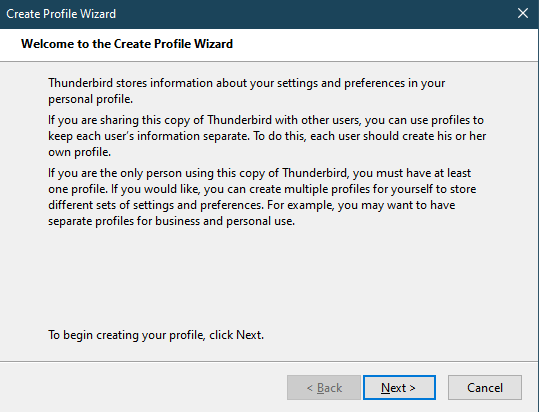

The action here is to use the Create profile button. This will open a Create profile Wizard dialog.

Lots of information here, but just click Next.


 This dialog is upset because the name already exists,  as does the location,  so change the name.  To anything.  Something like OldProfile or MyProfile might be a good easy name to remember if you ever have issues in the future.

Now click the choose folder button.  This will open a standard open dialog in the default location of the profiles.  What I see looks like this
This list of files with their random characters and "profile names" on the end is the same list as shown in the about:profiles page.  But there should be one more profile listed here than is shown in the about:profiles page.  Select it as the location for your new profile and click ok.  Then in the profile wizard click finish.

You will be returned to the about profiles page and the list will be refreshed with your new profile name which will show as default. A restart of Thunderbird should see the correct profile launched.

Profile per install and downgrade protection


Thunderbird 68 also introduced a Mozilla feature,  profile per install and picked up the downgrade protection along with it.  This actively prevents downgrading from one version to another.  Mozilla also introduced a new command line option to override the downgrade protection.

For those using Thunderbird this command line also works.  So I suppose I need to offer instructions for that.

For Windows users,
using the run command (Windows key+R) 
Entering the following command line for 32 bit Thunderbird 
"C:\Program Files (x86)\Mozilla Thunderbird\Thunderbird" -allow-downgrade 
or the following command line for 64 bit Thunderbird
"C:\Program Files\Mozilla Thunderbird\Thunderbird" -allow-downgraded 

These example assume default installs and you might just have been switched from 32 to a 64 bit build on update.  So you might have to try both. 

For MacOS
cd /Applications/Firefox.app/Contents/MacOS
./firefox -allow-downgrade
 
For Linux
cd Thunderbird installation directory
./thunderbird -allow-downgrade


Wednesday, February 28, 2018

Copy Thunderbirds profile to a new computer.

This is something we all must undertake at some point,  and to this end there is an article on the Thunderbird support forum that offers a number of methods.  See here 

I am writing this because really the article is  inadequate,  but attempts to improve it run into issues with Linux and OSX.  So here the discussion is about windows only and will offer instruction that assume you have not changed some fundamental options in Thunderbird.

While the vast majority of Thunderbird users do not change the location of their profile, or change the folder ("Local Directory") used to store the mail data for an account. It is possible to do both things and is one of the reasons the instructions on the support site are not as good as they should be.
So check the following in your old device.

Local Directory
  1. Right click the account in the folder pane in Thunderbird.
  2. Select properties
  3. In the server Settings for the account look at the "Local Directory"


In the above image I have removed the parts of the path that are specific to any one computer.  The remaining information is consistent with all versions of Windows since XP.  The part that needs to be checked  to ensure it is set to a default location is \appdata\Roaming\Thunderbird.  If your path does not contain this string.  These instructions are not for you.

Profile folder location

  1. On the help menu select troubleshooting information.  
  2. Click open folder beside "Profile Folder"
  3. Windows file manager will open. 

Again check the profile location contains \appdata\Roaming\Thunderbird.  This is the default location of the profile and unless it has been actively changed will show in the path at the top of the explorer window.

If the above two checks show  \appdata\Roaming\Thunderbird then proceed with the profile size check and actual copy below.

 Size check and copy
Old device.
  1. Windows key + R
  2. Type %appdata%
  3. In the Windows explorer window that opens select the Thunderbird folder with your mouse in the left hand pane.
  4. Right click the Thunderbird folder with your mouse and select properties from the menu that appears. Take note of the size of the Thunderbird folder and the number of files.
  5. Select a USB device with sufficient free space to hold your profile folder and copy the folder to it.
  6. Right click the Thunderbird folder on the USB drive and confirm it is the same number of file and folders as you noted earlier.  If it is different then the copy will most likely not be complete. 
New Device

  1. Windows key + R
  2. Type %appdata%
  3.  Copy the Thunderbird folder from your USB device and drop it onto the appdata folder in the windows file manager.  If there was no Thunderbird folder before, one should be created.  If there was one you should be prompted to replace files.
  4. Install Thunderbird.  Or start it if you previously installed it..

Friday, February 10, 2012

Recovering your lost data

Now it would be easy here to use that old computing chestnut here, use your backups and restore from those.

The reality however is that for whatever reason most people don't have good backups, to make things even more serious many assume that the windows system restore will do it for them. Windows system restore is almost as likely to leave you will a non functional Thunderbird as it is to do anything.

Leaving aside my personal anger at the decision Microsoft made 10 years ago that home users just don't need backups, and subsequently excluded the backup program from the operating system you purchased.  You find yourself in the situation that your hard drive crashed, the nice person at the computer store has put your old hard drive into an external case you install Thunderbird and all your mail is simply not there. To recover from this situation, you need to role your sleaves up and get into the nity gritty of the file system on your old had disk.

I am going to talk here primarily of windows, as Linus and mac actually have build in backup programs and in the case of iCLoud, a nice secure place to store it.

Under Windows Thunderbird profile data is stored in a collection of folders in a Hidden windows folder called Application Data.  You will find all sorts of references on the web telling you to use the %appdata% windows environment variable to locate this folder, but that will only work on the current operating system, not your old hard disk. So to start with there are some changes you need to make to windows.

First you have to tell windows to show hidden files and folders.

Windows XP
Vista
Windows 7

I have linked to Microsoft here, as it is their operating system. If their explanation of how is not enough for you, please ask Microsoft.

Now we need to locate the Application Data folder, but first a convention [username] means your login name to the computer.

Windows XP the folder is usually C:\documents and settings/[username]\application data
Windows vista it is usually C:\users\[username]/appdata or C:\users\[username]\appdata\roaming
Windows 7 is is usually C;\users\[username]\appdata\roaming

Hopefully this image I stole from the Microsoft site will explain a little

Once you locate the application data folder, it is simple to then locate the Thunderbird folder it contains.

The Thunderbird folder contains a file called profiles.ini.  This file actually containsa couple of thing that we need to note.  One is the location of the actual profile folder.  So open the file in wordpad.  Wordpad will format it nicely, notepad will make a a long string of gobbldy gook


[General]
StartWithLastProfile=1

[Profile0]
Name=default
IsRelative=1
Path=Profiles/it39phn2.default
Default=1

[Profile1]
Name=tester
IsRelative=1
Path=Profiles/zwldg1rp.tester


The two things of interest are the IsRelative and Path.

IsRelative =1 means the profile is located further down the Thunderbird folder tree. if it is not =1 then the folder will be located absolutely at the location pointed to in Path=

Unless you have changed defaults, IsRelative will equal 1 and you need to navigate down the folders until you locate to place pointed to in the path= line.

You have now located your old profile folder.  The question arises,  do you just want some of the information out of it, or do you want it all as a replacement for what you have.  The latter option is by far the easiest.

Simply replace the files in your new profile folder with the ones in your old profile folder and start Thunderbird and all will be back as it was before.

If replacement is not an option, I would suggest you install the Import / Export tools to Thunderbird and export the new mail you have in your new profile as EML files.  Replace the files as above and use the Import Export tools to re-import the new mail..


Saturday, July 18, 2020

My experience in Updating to Thunderbird 78


As the support requests had started appearing for the update to 78 I though I would update. Now I was a lo
Downloaded EXE at 12.49pm
Then memory usage shot up,  disk IO went up and the clicking of continue of scripts started.


is what I saw in the task manager,  I clicked continue 5 times and eventually a new Thunderbird window appeared at 1:00pm.

However still the application is busy.

Memory usage is up and disk IO is also maxing out.

1:02 I have apparently got Thunderbird.  But there is nothing useful to show

Memory usage is still up,  but disk IO is down.


Nothing actually works. The top menu is simply non functional.

No I made a mistake,  it is displaying tiny tiny boxes
There is one under the help help in the image above.  I think it might be a tooltip

1:08 Thunderbird is still doing something,  as the CPU usage changes in task manager,  but I have no idea what.

Resource monitor appears to think Thunderbird is waiting on Network IO,  but it is not using the network.

Well this has been truly exciting.  1:13 and still nothing,  but the windows controls for minimize and close don't work either.  Just a wonderful upgrade so far.  And that was after using the Beta on another profile.

1:15 I have better things to do I will have lunch and see if it comes to life while I do that.  At least the script error have stopped.


1:16 disk IO has stopped

Memory use is not changing,  the UI is useless. So I suppose it is time to End the task from task manager. 1:20  ended task,  the speed at which it disappeared certainly suggested it was doing nothing.

1:21 clicked to start Thunderbird again,  just in case the last debacle was an accident.

1:22 script unresponsive


It was 1:23 before I clicked continue,  and I am still hungry.

1:25 a UI appeared.  Status bar says null again like last time.

1:27.


UI elements get focus when you mouse over,  but fail to respond.

1:32 Time to kill it again I think.  Perhaps not the Status bar has changed from Nul to No messages to download.  That would indicate the profile is sort of working.


1:44  everything is quiet

Except I still have no user interface that works.

The user profile has lots of updated files.  God help us with the load of SQLite files I am seeing.


But still I need to end task and even the big red X does not work.

Well I figure I need a backup before this gets any worse.  Not sure how long windows will; take to backup 257,000 items,  but I am guessing a long while.  Yay   it says more than 3 hours.  Not for me.

So I tried deleting the global DB,  pig that it is.  Nothing useful from that but another 10m minutes watching the task manager.

Tried safe mode,  put up a dialog about being in safe mode and a number of script time-out errors. Now it is at 2654.  but it looks like this might not load it at all.

Nope rebooted the whole computer.  Perhaps that will help.

3:16 Tried launching Thunderbird again.

After removing panacea.dat,  globalmessagesdb and foldertree.dat one at a time and waiting out  the extensive startup process I made no progress.  Safe mode does not start functionally

Gave up about 5pm and renamed all the mab.bak files to mab and reverted to Thunderbird 68 using the allow-downgrade .  Basically I might try again in a week or so what I have half a day to mess about again.  Program loads and functions mostly correctly.  No calendar,  but I think I like it that way.